Running Claude Code on an Air Cloud Container — From SSH Connection to AI-Assisted Coding

Every GPU experiment starts the same way: before you write a single line of code, you're already fighting your environment. Matching CUDA versions, installing drivers, resolving package conflicts — two hours gone before anything actually runs.
Air Cloud solves this by letting you deploy a container with PyTorch and CUDA pre-configured, then connect via SSH immediately. No local setup required. Add Claude Code into the mix, and you can start writing, debugging, and running code with AI assistance the moment you connect.
This guide walks through the entire process, step by step.
Who This Is For
ML developers whose local machines can't keep up with GPU workloads
Claude Code users who want the same workflow on a remote server
Developers who want to connect to a remote GPU server via VSCode
Prerequisites
Air Cloud account (aieev.com)
Anthropic API Key (from console.anthropic.com)
Local terminal (macOS / Linux / Windows WSL)
Step 1. Install the aircloud CLI
Air Cloud provides a dedicated CLI tool. Install it with a single command.
(This guide is based on macOS.)
pip install aircloud-cliOnce installed, register your API Key and server URL. You can find your API Key in the Air Cloud console under Settings.
aircloud config set api-base-url https://external.aieev.cloud:5007
aircloud config set api-key sk-여기에_발급받은_키를_입력하세요
*When issuing an API key, you must select access to the container you want to connect to.
Verify the setup:
aircloud whoami
Step 2. Generate an SSH Key and Register It
To connect via SSH, you'll need to generate a key pair locally and register the public key in Air Cloud.
Generate the Key Pair:
ssh-keygen -t ed25519 -C "your-email@example.com" -f ~/.ssh/aircloud_key -N ""-f ~/.ssh/aircloud_key sets the key filename, and -N ""creates the key without a passphrase.
Copy the public key:
cat ~/.ssh/aircloud_key.pubCopy the full string starting with ssh-ed25519 AAAA....
Register the public key in the Air Cloud console:
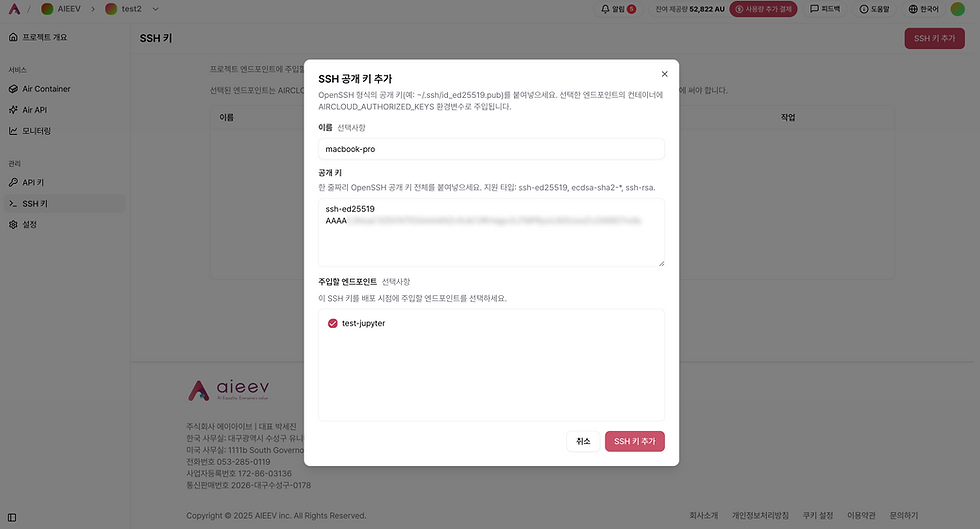
Open the Air Cloud console
Go to SSH Keys in the project sidebar
Enter a recognizable name (e.g., macbook-pro)
Paste the public key
Select the endpoint to inject the key into and save
*Note: SSH keys are injected when the container starts. If you add a key to a running container, it will take effect on the next restart.
Step 3. Deploy a Container
In the Air Cloud console, deploy a new container. Select the Jupyter or Code environment template — SSH is enabled by default on these templates, so no additional configuration is needed.

After deployment, wait until the ACTIVE status shows True in the console. SSH connections will fail if the container is not active. If the status shows READY but ACTIVE is False, click the Start button to bring it up.
*Using a custom image? SSH works with custom images too, but your image must include openssh-server, host key generation, authorized_keys setup, and sshd running at boot.
Step 4. Connect via SSH
Find your Endpoint ID in the console, or retrieve it via CLI:
aircloud endpoints listThen connect using the -i flag to specify your key file directly:
aircloud ssh <endpoint_id> -i ~/.ssh/aircloud_keyA successful connection looks like this:

Once the prompt changes to root@container-id:~#, you're inside the Air Cloud container. Verify the GPU is attached:
nvidia-smi
Step 5. Install and Run Claude Code
The Jupyter template includes Node.js out of the box. Install Claude Code directly:
npm install -g @anthropic-ai/claude-codeSet the API Key:
Remote servers don't have a browser for OAuth login. Set your Anthropic API Key as an environment variable instead:
export ANTHROPIC_API_KEY=sk-ant-여기에_앤트로픽_키를_입력하세요To avoid setting this every session, add it to ~/.bashrc:
echo 'export ANTHROPIC_API_KEY=sk-ant-여기에_키를_입력하세요' >> ~/.bashrc
source ~/.bashrc
Launch Claude Code:
claudeTry It Out — Coding with Claude Code on a GPU Server

With Claude Code running, you can start working with AI directly on the GPU server. Here's a quick example to verify everything is working:
Write and run a GPU vs CPU benchmark:
Write a PyTorch script that compares matrix multiplication speed on GPU vs CPU, then run itClaude Code will write the script and execute it inside the container. The output will show how much faster the GPU handles the computation compared to CPU.


Bonus: Connect with VSCode Remote SSH
If you prefer a GUI environment, you can connect to the container directly from VSCode.
1. Install the Remote - SSH extension
Search for Remote - SSH in the VSCode Extensions marketplace and install it.
2. Open an SSH tunnel
In your local terminal, set up the tunnel with --tunnel-only:
aircloud ssh <endpoint_id> -i ~/.ssh/aircloud_key --tunnel-only3. Connect from VSCode
Ctrl+Shift+P (macOS: Cmd+Shift+P) → Remote-SSH: Connect to Host → select the tunneled host.
VSCode will treat the container's filesystem like a local folder. Install the Claude Code VSCode extension inside the remote environment, and you'll have a full AI-assisted IDE running on your GPU server.
Wrapping Up
We've walked through the full workflow: deploying an Air Cloud container, connecting via SSH, and running Claude Code on the GPU server. The key advantage of this setup is that you get the same AI coding experience you're used to locally, while all the heavy computation runs on dedicated GPU hardware in the cloud.
If cost is a concern, Air Cloud starts at $0.71/hr for an RTX 4090. Spin it up when you need it, shut it down when you're done.
If you get stuck at any point, the resources below should help.
.
.
.
➡️ Deploy a GPU container and connect now: https://ap-1.aieev.cloud:3007/get-started
➡️ Full SSH connection guide: https://docs.aieev.com/docs/air-container/connect-with-ssh
➡️ Ask the engineering team directly: https://www.aieev.com/contact-tech